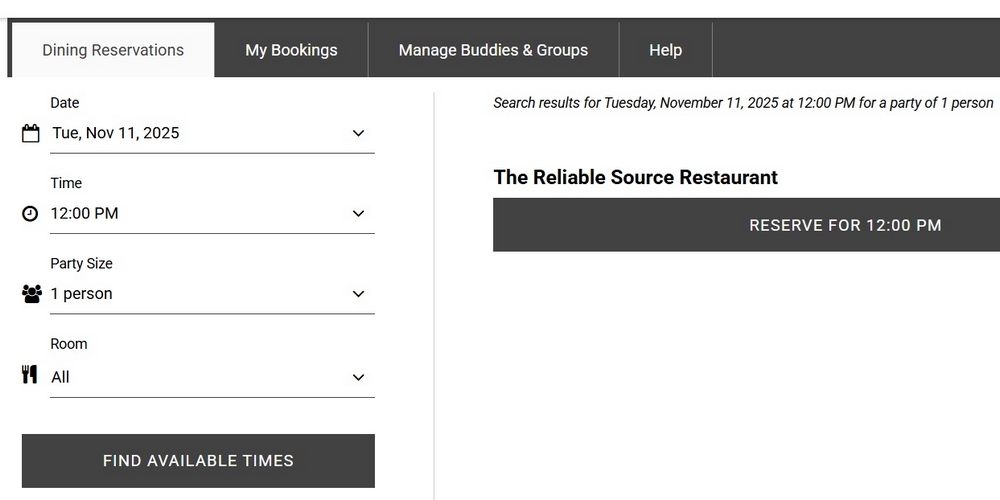
Screen shot of National Press Club reservation page
A quick tutorial on the new NPC reservation system
- Log-in to Member Central on press.org. If you're having problems with the log-in to Member Central, contact Club's membership staff at members@press.org.
- After log-in, click on Dining Reservations
- Using the drop-down menus in the left-hand column, select: Date, Time, Party size (1 or more), and Room (All, it's only the Reliable Source)
- Click on the button that says FIND AVAILABLE TIMES
- The right-hand side of the page will show The Reliable Source Restaurant, and below on a blue bar RESERVE FOR 12:00 PM or 12:45 PM, if a remote participant. Click on the blue bar.
- You will see on the screen: Your name and a box labeled Special Requests/Notes.
- In the Special Requests/Notes box, write "Photography Team meeting in the Cosgrove Lounge" or "Photography Team meeting: remote participant".
- If you have in-person guests, click on the plus sign (+), then add their names and emails where indicated.
- Click on the button that says BOOK NOW.
After making your reservation, you should receive a confirmation via email.
Because the new system is part of Member Central, it already has your name, email, and membership number, which saves a few steps and time from before. Plus, no separate app nor tickets are involved.